How to calibrate (and recalibrate) your cameras for your bullet-time photobooth (instructions)
October 20, 2026
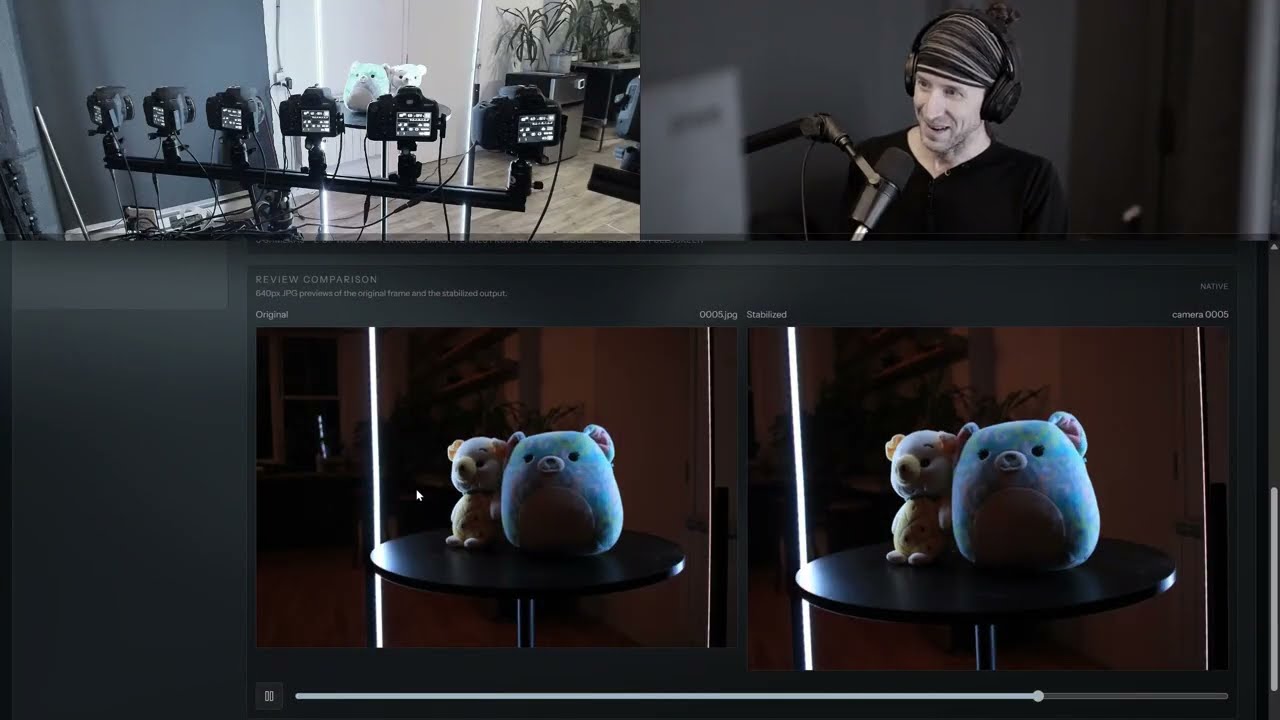
This is for our bullet-time photobooth friends!
Here’s how you can super quickly do your first calibration (prior to your event), but mostly, how you can recalibrate after someone bumps into one of your cameras (yeah, that’s usually me 😹)
This demo illustrates the Xangle workflow for multi-camera calibration. Initially, a shot is taken, and the six images are calibrated to create a recipe. This recipe ensures the cameras are properly placed in the 3D environment, stabilizing subsequent shots. The demo then shows how to reuse this recipe for new shots.
To demonstrate a common issue, camera number six is simulated as being bumped, resulting in a bumpy shot. Instead of having to use a calibration bar like in the old days, the system allows for quick recalibration using the previous bumpy shot to create a new, smooth recipe. This new recipe is then applied to subsequent shots, allowing for continuous shooting even after minor camera adjustments.
How to calibrate your cameras? (no calibration bar required):
- Place a pole in the center of the frame, and mark the spot with tape.
- Aim your cameras at the pole using the live view. The more precise you are, the less crop you're going to get with the end result.
- Take a shot in Xangle Camera Server, and click on the Calibrate button. This creates a recipe your can reuse over and over for as long as your cameras stay at the same exact place.
- If the stabilized result is smooth, then you're good to go
How to recalibrate after one camera gets bumped)?
Simply click on the calibrate button from the dataset with the bumped camera. Of course, if you have time, re-aim the camera at the center pole so you avoid getting too much crop
Good to know:
- You can always see your recipes from the Calibration module.
- A camera calibration recipe is used to stabilize your images (for smooth playback).
- Any dataset (any shot you take) can become a new recipe. Simply open it from the Quickview or Library and click on the Calibration button.
- A recipe is simply a list of transformations per camera (which is telling this camera to look at bit more to the left, and another one to rotate for a few degrees...).
- Don't delete the dataset where your active calibration recipe lives. You need this to calibrate your next shot!