Multi-camera app for Android phones
A multi-camera app for Android phones
Control an array of Android phones from your computer for bullet-time photobooths, photogrammetry, and Gaussian-splat image capture. Xangle Camera Server runs on Windows or Mac and controls phones running Xangle Remote Camera over your local Wi-Fi network.
Arrange the phones around a subject, set the available camera controls from the desktop, and trigger photo or video capture across the array. Photos and video clips transfer back to the computer as a dataset for review, processing, and export.
Install the phone app over USB, then capture over Wi-Fi. Android 8.0 or later is required; individual camera features depend on the phone and selected lens.
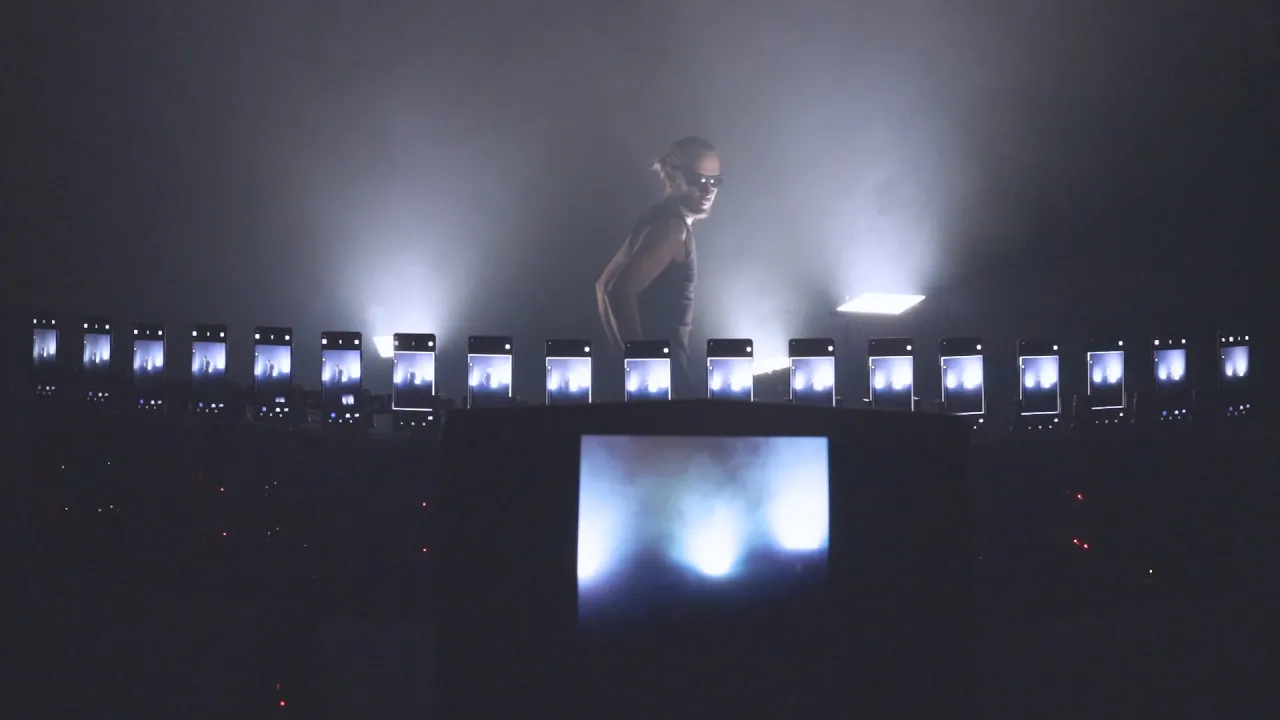
The video shows an earlier Android setup. Follow the current setup instructions below rather than the interface shown in older clips.
Connect
Install Xangle Remote Camera on each phone over USB, then connect the phones to the same local Wi-Fi as the desktop. Number the phones in Camera Server.
Control
Choose the lens and available exposure, focus, white balance, resolution, and frame-rate settings. Check the settings on every phone before a take.
Capture
Trigger the array, then review the downloaded photos or clips on the desktop. Check that every phone has returned its files.
Camera controls
- See connected cameras, readiness, numbering, and the latest captured dataset in Camera Server.
- Adjust supported ISO, shutter speed, focus, white balance, resolution, and frame rate from one interface.
- Select front or rear lenses where supported. Each physical phone counts as one camera; changing its lens does not add another camera to the array.
- Use live view where supported to check framing and focus.
- Choose manual settings and lock the values that need to stay consistent across a group.
Android camera capabilities vary by manufacturer, model, lens, and mode. Check which manual controls and recording formats your phones support before planning a shoot.
Photo and video capture
Photo
Use still capture for overlapping views, detailed subjects, and image-based processing. Match exposure and focus across phones, then confirm that every expected image reaches the desktop.
Video
Record video from several viewpoints at the resolution and frame rate supported by each phone. Camera Server downloads the clips to the computer.
Synchronizing Android phones
To synchronize Android phones for a take, keep the remote apps ready on the same local network, number the cameras, and match the supported capture settings before a group trigger. A coordinated trigger is not hardware genlock. Native still timing, video start, and longer recordings can behave differently across devices. Test moving subjects with the phones, camera mode, exposure, and Wi-Fi network you intend to use. Timing and image quality can vary between models.
Bullet-time photobooths and Gaussian splats with Android phones
Build an Android bullet-time photobooth
Arrange the phones around the subject, secure the rig, and match framing and supported exposure settings. Capture multiple viewpoints, then use suitable calibration and stabilization to create a video sequence through the camera views. No calibration bar is required. Keep the calibration source dataset and recheck the rig after a camera moves.
Prepare branding and landscape or portrait outputs, then test the full capture-to-delivery process before an event. Phone count, Wi-Fi, image size, processing, and the desktop affect turnaround. Compare color, framing, and timing when mixing phone models; a connected roster is not a completed capture test.
Capture a Gaussian splat using Android phones
Use sharp, overlapping views of a still subject with consistent lighting and enough coverage around the shape you want to reconstruct. Select matching lenses where practical, lock supported exposure and white balance, and avoid blur or clipped highlights. Download the complete image set to Camera Server and inspect it for missing views before reconstruction.
Gaussian-splat training and photogrammetry are processing steps after image acquisition. Choose a calibration source and processor that match the dataset, platform, and license. Multi-camera capture does not automatically correct poor coverage, inconsistent images, or subject movement.
Motion and custom systems
Use multi-view photo and video datasets for motion studies, research, installations, and external post-production. Test alignment with the exact movement, phone models, capture modes, and network you intend to use. Dynamic 4D Gaussian-splat production is experimental and requires suitable external processing tools.
Studio capture · Photobooth software · 3D Gaussian-splat capture
Processing and delivery
- Review complete datasets and individual views in Library.
- Prepare supported processing and output recipes for consistent framing, overlays, and branding.
- Export landscape and portrait videos or still images from the same capture.
- Use QR downloads or email delivery for prepared results; offline QR serves files over the configured local network.
- Depending on your license, you can also use custom naming, automatic backups, browser stations, and scripts.
Turnaround depends on phone count, file sizes, Wi-Fi, processing, and output choices. Camera limits and advanced features depend on your license; test capture, processing, and delivery together before an event.
Outputs and sharing · Gaussian-splat processing · 4D capture context
First-time setup
Prepare every phone before the session. A USB data cable is required for provisioning and app updates; normal capture then uses the local Wi-Fi network.
What you need
- Camera Server on a Windows or Mac computer.
- Android 8.0 or later (API level 26 or later).
- A data-capable USB cable, not a charge-only cable.
- Developer options and USB debugging enabled on every phone.
- A shared local Wi-Fi network with guest-network client isolation disabled.
- Enough power, free storage, and cooling for the intended session.
Choose a dedicated network where possible and test the exact phones together. Android 8.0 is the minimum requirement; available lenses, formats, and manual controls depend on the phone.
Install through Camera Server
- On each phone, open Settings, find About phone, and tap Build number seven times to enable Developer options. Menu names vary by manufacturer.
- Enable USB debugging, then connect the unlocked phone to the desktop using a USB data cable.
- Accept the Allow USB debugging prompt. Choose Always allow from this computer if offered.
- In Camera Server, open Camera Adapters and enable the Android adapter.
- Let Camera Server install or update the bundled Xangle Remote Camera app and launch it.
- Allow Camera and notification permissions if requested. Keep the app visible.
- When provisioning is complete, disconnect USB and use Wi-Fi for capture.
Repeat for each phone. This setup does not require a separate manual APK download.
Ready for the first take
- Connect the desktop and all provisioned phones to the same local network. Avoid guest Wi-Fi and client isolation.
- Open Xangle Remote Camera on every phone. Leave it in the foreground and keep the screen awake.
- Wait for the phones to appear in Camera Server, then number the array and select the required lenses and camera modes.
- Set exposure, focus, white balance, resolution, and frame rate where supported. Check framing and settings across the group.
- Trigger a short test and confirm a completed download from every phone before shooting the real subject.
Keep phones charged and prevent them from switching networks during capture. For long sessions, plan power and airflow and repeat a full test after a reconnect or configuration change.
Phone setup and diagnostics
App installation and updates
Camera Server detects Android phones connected by USB and installs or updates the bundled Xangle Remote Camera app, then launches it. There is no separate APK download to manage. The Android adapter also includes Reinstall APK for cases where an app update has not applied.
Connection and capture checks
The camera roster brings connected phones and their numbering into one view, helping operators identify which phone is absent from the array. Live view, where supported, provides a visual check of framing and focus.
Captured photos and clips return to the desktop for review in Library. Operators can inspect the downloaded views for missing images, blur, or inconsistent exposure before processing the dataset.
These views help narrow down a connection or capture problem; they do not automatically diagnose every cable, phone, or network fault.
Android capture examples
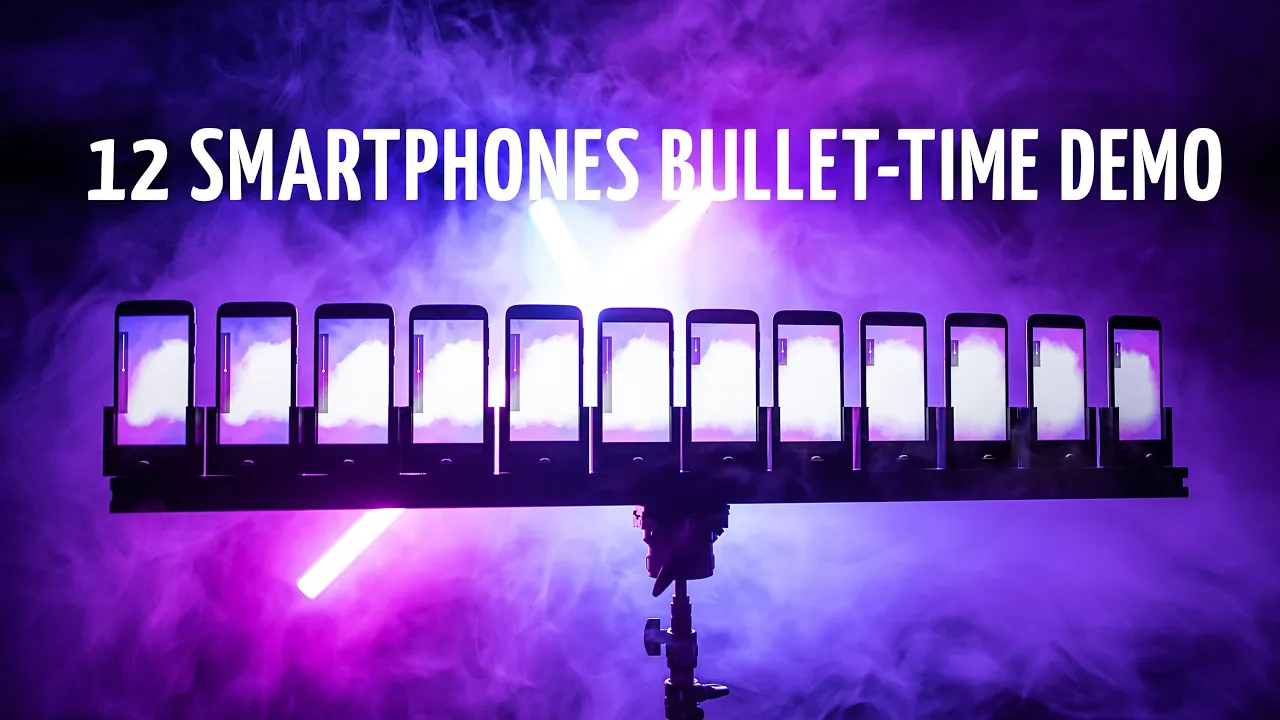
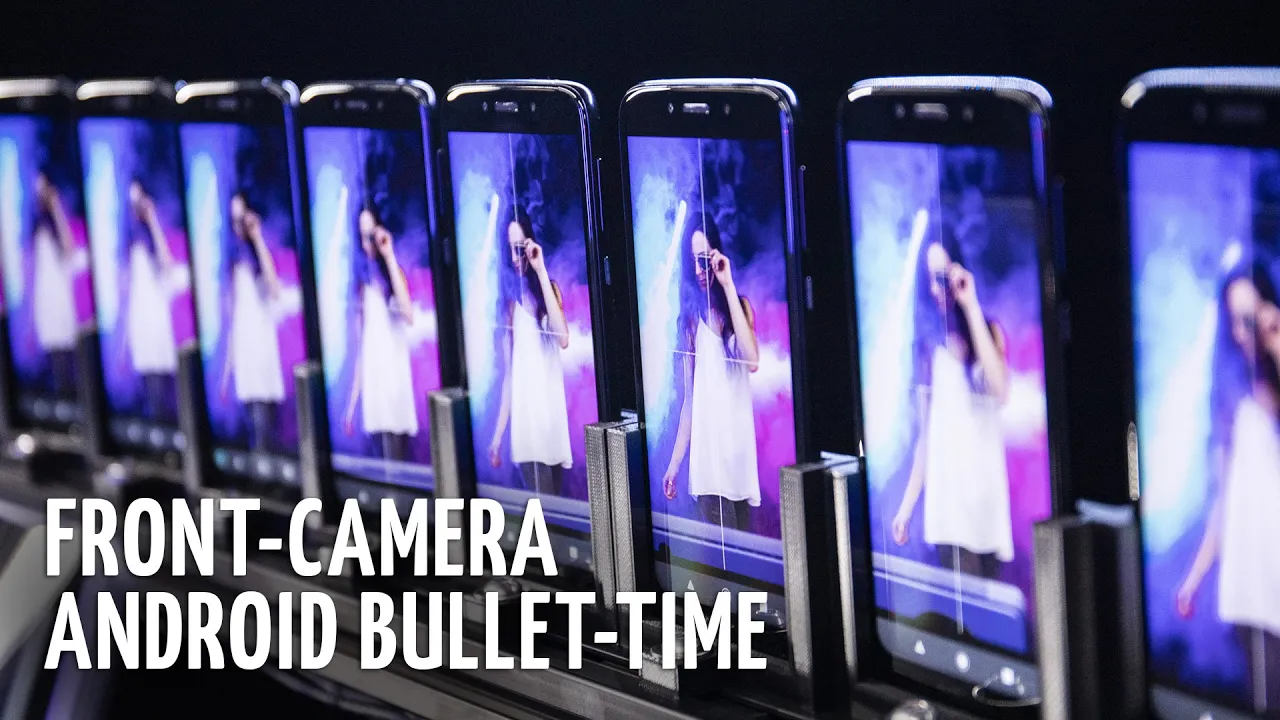
These videos and results show earlier Android rigs and software versions. For current setup instructions and requirements, use the Android guide linked above.

Android multi-camera FAQ
What app controls multiple Android cameras from a computer?
Use Xangle Camera Server on Mac or Windows with Xangle Remote Camera on each Android phone. Camera Server coordinates the connected phones, exposes supported camera controls, triggers photo or video capture, and downloads the results. Provision the phone app over USB once, then use the shared local Wi-Fi network for capture.
Can I make a bullet-time photobooth using Android phones?
Yes. Arrange the phones around the subject, match supported camera settings, capture multiple viewpoints, and process the image set into a sequence through those views. Test the intended movement, lighting, framing, calibration, and guest-delivery steps together. Different phones can render the same scene differently, so qualify the whole group before an event.
How do I synchronize Android phones for multi-camera capture?
Connect provisioned phones to the same local network as Camera Server, leave Xangle Remote Camera in the foreground, number the cameras, and apply consistent supported settings before a group trigger. Coordinated triggering is not hardware genlock or a claim of exact sensor-level synchronization. Measure the result on moving subjects with the actual phone models, modes, exposure, and Wi-Fi network.
Can I create a Gaussian splat using Android phones?
Android phones can capture the overlapping image set used for Gaussian-splat training. Start with a still subject, consistent lighting, sharp images, sufficient view coverage, and matched exposure and white balance where available. Camera Server collects the dataset; reconstruction still requires a suitable processor and the applicable platform and license. See 3D Gaussian-splat capture.
Can I mix Android brands, models, or lenses?
Supported phones can be connected together, but Android camera capabilities vary by manufacturer, model, lens, and capture mode. Do not assume every phone exposes the same manual controls, resolution, frame rate, or live view. Select a common tested configuration and compare the downloaded images before using a mixed array for production.
Do Android cameras need USB cables or an internet connection?
A USB data cable and authorized USB debugging are needed for first-time installation and app updates. After provisioning, capture uses the local Wi-Fi network shared with Camera Server. Internet access is separate from this local connection; install software in advance and test any licensing, cloud processing, or delivery services before planning an offline event.
Which Android versions and computer platforms work?
The phone app requires Android 8.0 or later. Camera Server runs on Windows or Mac. Android version alone is not a model-level compatibility guarantee: test the exact phones, lenses, controls, and recording formats. The phone capture path is not qualified here for Raspberry Pi hosting.
Why is a phone missing or dropping out during capture?
Confirm that the app is open, the phone is awake, and the desktop and phone can reach each other on the same network. Avoid guest Wi-Fi, client isolation, and automatic network switching. For installation failures, unlock the phone, accept the USB debugging authorization prompt, and use a data-capable cable. Run a complete capture and download test after reconnecting.
Download and test
Download Camera Server · Request a trial · Read the Android guide
See CameraArray for an overview of smartphone arrays. Before an event or permanent installation, confirm the camera count, license, and supported controls. Test capture, processing, and delivery on the equipment you plan to use. Trials are for evaluation, not production events.
For help planning your setup, contact the Xangle team.